

Passkeys are a new way to secure your online accounts using cryptographic keys instead of passwords. They offer a high level of convenience and security, and are a real game-changer in the way we access and secure sites. What is a passkey, though, and how do they work?
- What are passkeys?
- Passkeys vs passwords(nova janela)
- Passkeys explained(nova janela)
- Advantages of using passkeys(nova janela)
- Disadvantages of passkeys(nova janela)
- Passkeys and Proton Pass(nova janela)
What are passkeys?
A passkey is a form of passwordless authentication you can use to login in to an account. Passkeys replace the need for passwords and two-factor authentication (2FA) by using your device to identify you. Your phone or your laptop uses biometric information like your fingerprint or a numerical PIN to verify that you are who you say you are. Once you’ve done that, your device does the job of logging in for you with no extra information to memorize. Passkeys take the form of cryptographic keys stored on your device and the website or app you have an account with, so they’re less susceptible to brute-force attacks.
Passkeys vs. passwords
Normally, you gain access to an account by entering the credentials you gave when you created it: your username (often your email address) and password. Your password authenticates your identity because it’s something only you know. However, it’s possible for your password to be sold by data brokers, leaked in a data breach
Passkeys work differently than passwords do.When you create an account with a service that supports passkeys, your password manager generates a set of encryption keys. The next time you try to access the site, it will recognize the keys you hold and log you in without the need to enter your password. You don’t need to memorize these keys as you won’t ever see them: your device will automatically exchange them with websites and apps when you go to log in.
Passkeys explained
You don’t need to know the technical way a passkey functions to use one, but it’s helpful to have an understanding of how they’re different from passwords. Passkeys use the principle of asymmetric or public-key cryptography. We go into more detail about this in our article on how encryption works, but the short version is that when you create a passkey, your password manager generates two mathematically connected numeric keys: one public, one private.
The service you’re signing up for holds the public key, while you hold the private one, which is stored on your password manager. When logging into the service, the public key sends a challenge to your device which can only be answered correctly by your private key, identifying you as the account owner. Your device makes a note of every login attempt with a timestamp, meaning that a login attempt cannot be intercepted or reused.
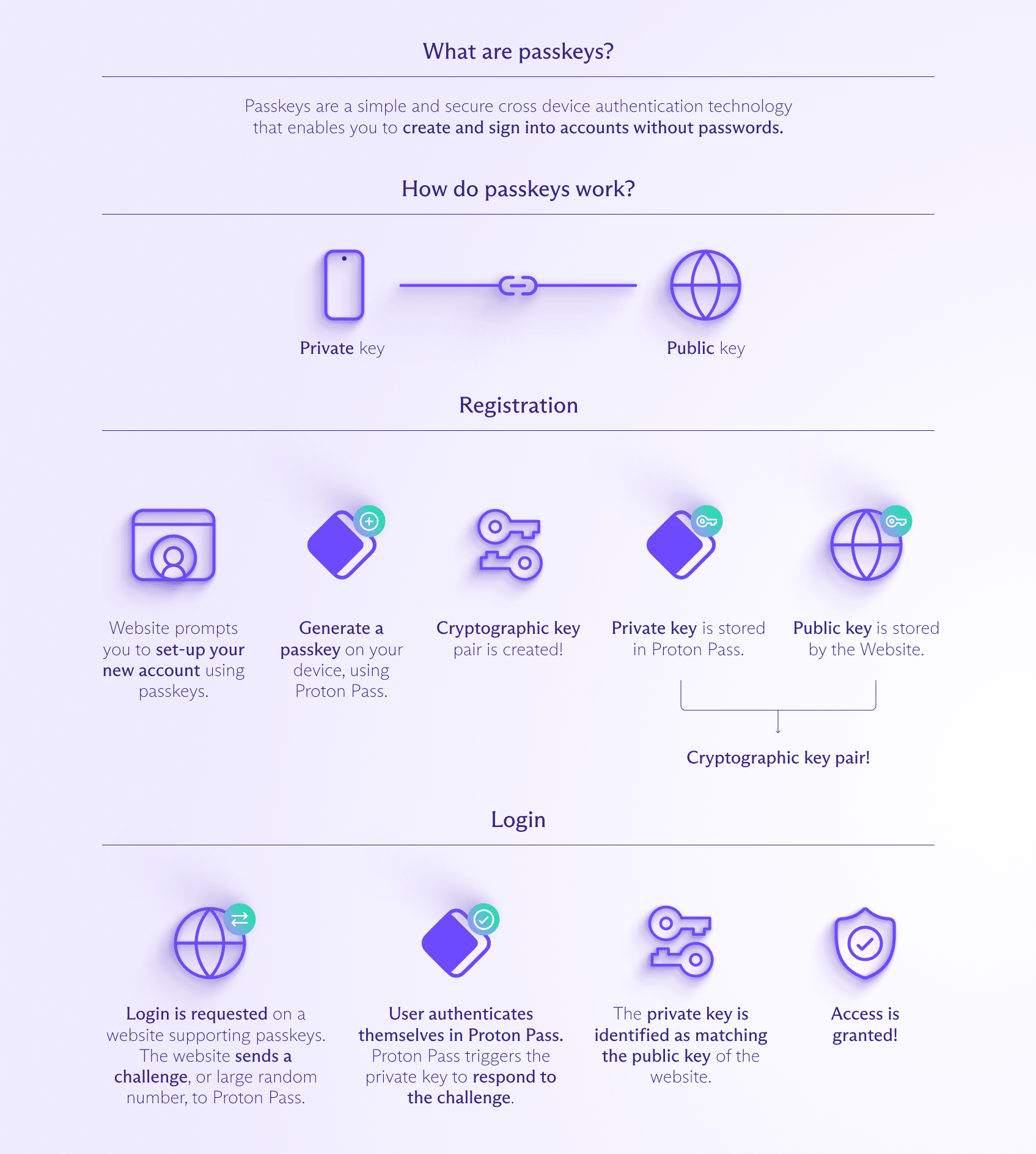
The system is very secure and practically impervious to brute force attacks. To crack the kind of numbers used in public-key cryptography would take a combination of the world’s supercomputers billions of years.
Advantages of using passkeys
- For you, the user, the whole login procedure is entirely seamless: All the above happens automatically and virtually instantly. You don’t need to memorize anything, your device does all of the work of logging you in safely. For this reason, passkeys are an excellent login method to use if you’re not very experienced with tech but looking to improve your online security.
- Because there’s nothing to memorize when you use a passkey, you can’t be locked out of your accounts. This removes the friction of using passwords, which can be lost or forgotten.
- Your passkeys are both linked to your devices and the specific domain used by the website or app you’re signing into, so they can’t be used to log into spoofed websites and so they’re much harder to steal than a password.
- Passkeys count as a form of two-factor authentication (2FA) which is considered stronger protection for your account than just a password by itself. This is because they need two things from you in order for you to log in: they require something you have (your device) and something you are (your biometric data e.g. your fingerprint).
Disadvantages of using passkeys
- Right now, few websites and apps offer them. Implementation can pose problems for providers, so adoption is moving slowly online. Supporting passkeys can get very technical, and since passwords and passphrases are highly secure providers aren’t prioritizing adding a new login method.
- If you’re looking for an alternative to a password, passkeys aren’t your only option: a passphrase is very secure and can be memorized.
- Since passkeys are associated with a specific device, if you lose your phone or your computer then you’ll lose access to the passkey. It’s important to protect your password manager with two-factor authentication for this reason: even if someone finds your phone, if your passkeys are protected by 2FA then they won’t be able to access your passkeys.
- Even if more sites used them, many devices still don’t support passkeys. For example, Android devices weren’t able to generate passkeys using a third-party provider until 2025.
Best practices for using passkeys
If you’re ready to try creating your own passkeys, it’s easy to get started. Here are some guidelines for how to implement them securely.
- Make sure your device, your password manager, your email account, and any cloud storage you’re using are all protected with 2FA. This way, even if you lose your device it won’t be possible for someone to access your passkeys.
- Review and update the recovery methods for your online accounts so that it isn’t easy for someone to request a password change or a new passkey for your account. Enable 2FA for account recovery and make sure to disable one-time passwords (OTPs) sent via text or email as these can be intercepted easily.
- Where possible, create backups for your passkeys. Ideally, create a passkey for the same website or app on two different devices so that losing one device doesn’t mean losing access.
Passkeys and Proton Pass
To use passkeys, you need to use a program that can send and receive the keys that make up the passkey. For most people this will be a password manager, a program that stores and manages passwords and, more recently, passkeys. Currently, not all password managers support passkeys, across all devices, but Proton Pass does.
As secure as passkeys are, they do create a single point of failure: if somehow somebody gets access to your passkeys, you’re in trouble. To prevent this from happening, Proton Pass uses end-to-end encryption to make sure your passkeys are always stored safely on our servers; nobody can access them, not even us.
On top of that, Proton Pass is we are also platform agnostic: You can use passkeys on any site that supports them, using any of your devices as long as they are compatible.
Add to this our acclaimed interface, and you have a convenient way to implement this modern security tool. If you’re interested in knowing more about how Proton works, create a free Proton account today or check out our guide on how you can get started using passkeys.
FAQ
Can I log in to Proton Pass with Passkeys?
No, you can’t log into Proton Pass apps using passkeys, but you can use passwords, two-password mode, or passphrases, or via biometrics.
Can I still use my password if I have a passkey?
Yes, your password still works even if you create a passkey. It’s important to maintain strong, unique passwords for each of your online accounts, because it’s still possible that someone could use your password to log into your account without your permission.
Where are passkeys stored?
An encrypted version of your private key is stored on Proton’s servers, while the public key is held by the service you have an account with.
What happens to my passkeys if my device is stolen?
Nothing, they will still be on your device stored in your password manager making it imperative that you secure your Proton Pass app with a PIN or biometric scan.
How do I get a passkey?
You can create a passkey for an app or website that supports them using Proton Pass. You can find full guides for how to create passkeys in your browser, on Android, and on iOS on our support page.


